> ## Documentation Index
> Fetch the complete documentation index at: https://dodopayments-mintlify-external-integration-datafast-autosen.mintlify.site/llms.txt
> Use this file to discover all available pages before exploring further.
# Overlay Checkout
> A modern TypeScript library for embedding Dodo Payments overlay checkout and listening to checkout events in real-time.
## Overview
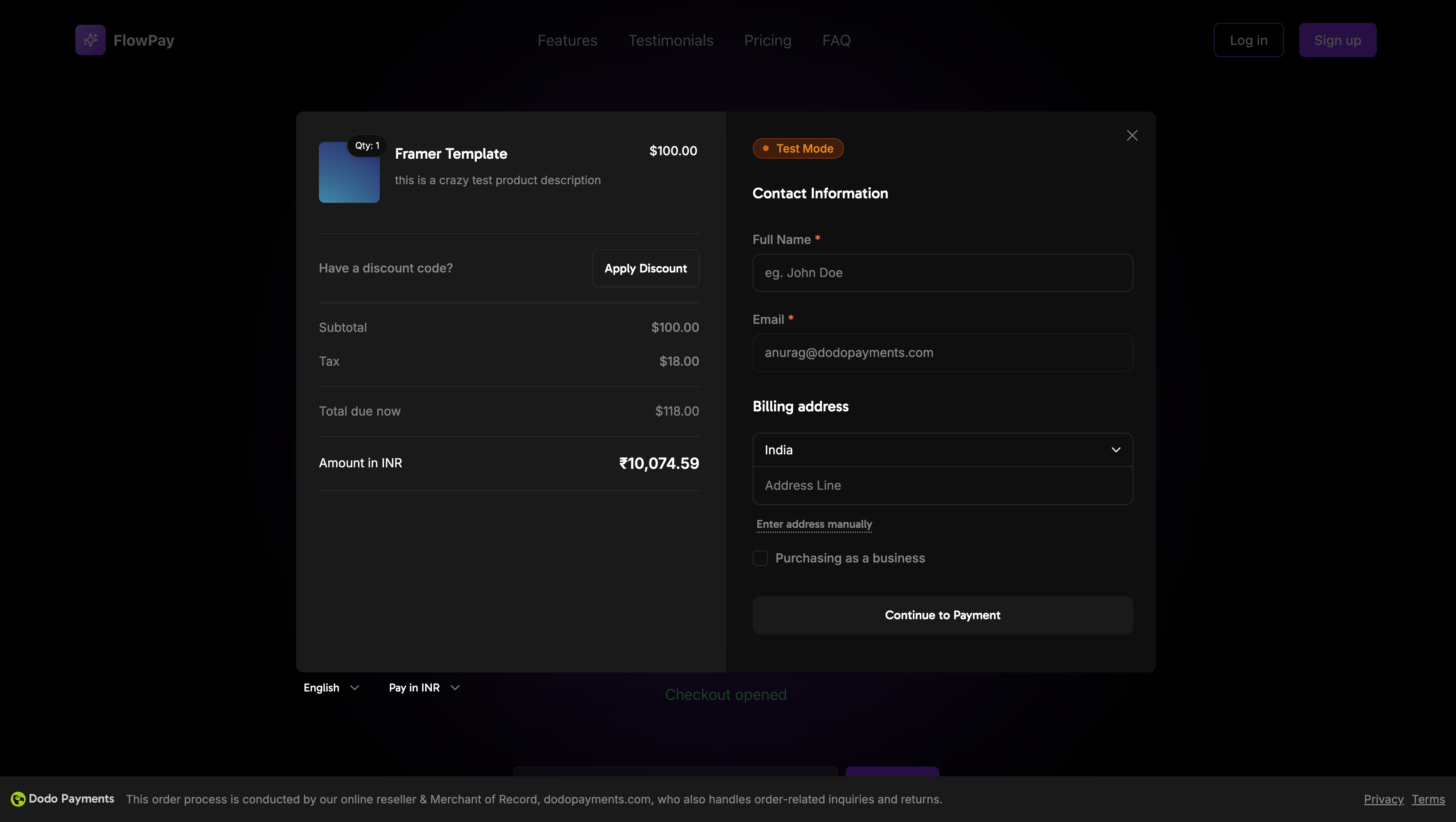
The Dodo Payments Checkout SDK provides a seamless way to integrate our payment overlay into your web application. Built with TypeScript and modern web standards, it offers a robust solution for handling payments with real-time event handling and customizable themes.
## Demo
See the overlay checkout in action with our live demo.
## Quick Start
Get started with the Dodo Payments Checkout SDK in just a few lines of code:
```typescript theme={null}
import { DodoPayments } from "dodopayments-checkout";
// Initialize the SDK
DodoPayments.Initialize({
mode: "test", // 'test' or 'live'
onEvent: (event) => {
console.log("Checkout event:", event);
},
});
// Open checkout
DodoPayments.Checkout.open({
checkoutUrl: "https://checkout.dodopayments.com/session/cks_123"
});
```
Get your checkout URL from the [create checkout session API](/api-reference/checkout-sessions/create).
## Step-by-Step Integration Guide
Install the Dodo Payments Checkout SDK using your preferred package manager:
```bash npm theme={null}
npm install dodopayments-checkout
```
```bash yarn theme={null}
yarn add dodopayments-checkout
```
```bash pnpm theme={null}
pnpm add dodopayments-checkout
```
Initialize the SDK in your application, typically in your main component or app entry point:
```typescript theme={null}
import { DodoPayments } from "dodopayments-checkout";
DodoPayments.Initialize({
mode: "test", // Change to 'live' for production
onEvent: (event) => {
console.log("Checkout event:", event);
// Handle different events
switch (event.event_type) {
case "checkout.opened":
// Checkout overlay has been opened
break;
case "checkout.closed":
// Checkout has been closed
break;
case "checkout.error":
// Handle errors
console.error("Checkout error:", event.data?.message);
break;
}
},
});
```
Always initialize the SDK before attempting to open the checkout. Initialization should happen once when your application loads.
Create a component that opens the checkout overlay:
```typescript theme={null}
// components/CheckoutButton.tsx
"use client";
import { Button } from "@/components/ui/button";
import { DodoPayments } from "dodopayments-checkout";
import { useEffect, useState } from "react";
export function CheckoutButton() {
const [isLoading, setIsLoading] = useState(false);
useEffect(() => {
// Initialize the SDK
DodoPayments.Initialize({
mode: "test",
onEvent: (event) => {
switch (event.event_type) {
case "checkout.opened":
setIsLoading(false);
break;
case "checkout.error":
setIsLoading(false);
console.error("Checkout error:", event.data?.message);
break;
}
},
});
}, []);
const handleCheckout = async () => {
try {
setIsLoading(true);
await DodoPayments.Checkout.open({
checkoutUrl: "https://checkout.dodopayments.com/session/cks_123"
});
} catch (error) {
console.error("Failed to open checkout:", error);
setIsLoading(false);
}
};
return (
);
}
```
Use the checkout button component in your application:
```typescript theme={null}
// app/page.tsx
import { CheckoutButton } from "@/components/CheckoutButton";
export default function Home() {
return (
Welcome to Our Store
);
}
```
Create pages to handle checkout redirects:
```typescript theme={null}
// app/success/page.tsx
export default function SuccessPage() {
return (
);
}
```
1. Start your development server:
```bash theme={null}
npm run dev
```
2. Test the checkout flow:
* Click the checkout button
* Verify the overlay appears
* Test the payment flow using test credentials
* Confirm redirects work correctly
You should see checkout events logged in your browser console.
When you're ready for production:
1. Change the mode to `'live'`:
```typescript theme={null}
DodoPayments.Initialize({
mode: "live",
onEvent: (event) => {
console.log("Checkout event:", event);
}
});
```
2. Update your checkout URLs to use live checkout sessions from your backend
3. Test the complete flow in production
4. Monitor events and errors
## API Reference
### Configuration
#### Initialize Options
```typescript theme={null}
interface InitializeOptions {
mode: "test" | "live";
onEvent: (event: CheckoutEvent) => void;
}
```
| Option | Type | Required | Description |
| --------- | ------------------ | -------- | ------------------------------------------------------------------- |
| `mode` | `"test" \| "live"` | Yes | Environment mode: `'test'` for development, `'live'` for production |
| `onEvent` | `function` | Yes | Callback function for handling checkout events |
#### Checkout Options
```typescript theme={null}
interface CheckoutOptions {
checkoutUrl: string;
}
```
| Option | Type | Required | Description |
| ------------- | -------- | -------- | ---------------------------------------------------------------------------------------------------- |
| `checkoutUrl` | `string` | Yes | Checkout session URL from the [create checkout session API](/api-reference/checkout-sessions/create) |
### Methods
#### Open Checkout
Opens the checkout overlay with the specified checkout session URL.
```typescript theme={null}
DodoPayments.Checkout.open({
checkoutUrl: "https://checkout.dodopayments.com/session/cks_123"
});
```
#### Close Checkout
Programmatically closes the checkout overlay.
```typescript theme={null}
DodoPayments.Checkout.close();
```
#### Check Status
Returns whether the checkout overlay is currently open.
```typescript theme={null}
const isOpen = DodoPayments.Checkout.isOpen();
// Returns: boolean
```
### Events
The SDK provides real-time events that you can listen to through the `onEvent` callback:
```typescript theme={null}
DodoPayments.Initialize({
onEvent: (event: CheckoutEvent) => {
switch (event.event_type) {
case "checkout.opened":
// Checkout overlay has been opened
break;
case "checkout.payment_page_opened":
// Payment page has been displayed
break;
case "checkout.customer_details_submitted":
// Customer and billing details submitted
break;
case "checkout.closed":
// Checkout has been closed
break;
case "checkout.redirect":
// Checkout will perform a redirect
break;
case "checkout.error":
// An error occurred
console.error("Error:", event.data?.message);
break;
}
}
});
```
| Event Type | Description |
| ------------------------------------- | ------------------------------------------------ |
| `checkout.opened` | Checkout overlay has been opened |
| `checkout.payment_page_opened` | Payment page has been displayed |
| `checkout.customer_details_submitted` | Customer and billing details have been submitted |
| `checkout.closed` | Checkout overlay has been closed |
| `checkout.redirect` | Checkout will perform a redirect |
| `checkout.error` | An error occurred during checkout |
## Implementation Options
### Package Manager Installation
Install via npm, yarn, or pnpm as shown in the [Step-by-Step Integration Guide](#step-by-step-integration-guide).
### CDN Implementation
For quick integration without a build step, you can use our CDN:
```html theme={null}
Dodo Payments Checkout
```
## TypeScript Support
The SDK is written in TypeScript and includes comprehensive type definitions. All public APIs are fully typed for better developer experience and IntelliSense support.
```typescript theme={null}
import { DodoPayments, CheckoutEvent } from "dodopayments-checkout";
DodoPayments.Initialize({
mode: "test",
onEvent: (event: CheckoutEvent) => {
// event is fully typed
console.log(event.event_type, event.data);
},
});
```
## Error Handling
The SDK provides detailed error information through the event system. Always implement proper error handling in your `onEvent` callback:
```typescript theme={null}
DodoPayments.Initialize({
onEvent: (event: CheckoutEvent) => {
if (event.event_type === "checkout.error") {
console.error("Checkout error:", event.data?.message);
// Handle error appropriately
// You may want to show a user-friendly error message
// or retry the checkout process
}
}
});
```
Always handle the `checkout.error` event to provide a good user experience when errors occur.
## Best Practices
1. **Initialize once**: Initialize the SDK once when your application loads, not on every checkout attempt
2. **Error handling**: Always implement proper error handling in your event callback
3. **Test mode**: Use `test` mode during development and switch to `live` only when ready for production
4. **Event handling**: Handle all relevant events for a complete user experience
5. **Valid URLs**: Always use valid checkout URLs from the create checkout session API
6. **TypeScript**: Use TypeScript for better type safety and developer experience
7. **Loading states**: Show loading states while the checkout is opening to improve UX
## Troubleshooting
**Possible causes:**
* SDK not initialized before calling `open()`
* Invalid checkout URL
* JavaScript errors in console
* Network connectivity issues
**Solutions:**
* Verify SDK initialization happens before opening checkout
* Check for console errors
* Ensure checkout URL is valid and from the create checkout session API
* Verify network connectivity
**Possible causes:**
* Event handler not properly set up
* JavaScript errors preventing event propagation
* SDK not initialized correctly
**Solutions:**
* Confirm event handler is properly configured in `Initialize()`
* Check browser console for JavaScript errors
* Verify SDK initialization completed successfully
* Test with a simple event handler first
**Possible causes:**
* CSS conflicts with your application styles
* Theme settings not applied correctly
* Responsive design issues
**Solutions:**
* Check for CSS conflicts in browser DevTools
* Verify theme settings are correct
* Test on different screen sizes
* Ensure no z-index conflicts with overlay
## Browser Support
The Dodo Payments Checkout SDK supports the following browsers:
* Chrome (latest)
* Firefox (latest)
* Safari (latest)
* Edge (latest)
* IE11+
Apple Pay is not currently supported in the overlay checkout experience. We plan to add support for Apple Pay in a future release.
For more help, visit our [Discord community](https://discord.gg/bYqAp4ayYh) or contact our developer support team.
 ## Demo