> ## Documentation Index
> Fetch the complete documentation index at: https://dodopayments-mintlify-external-integration-datafast-autosen.mintlify.site/llms.txt
> Use this file to discover all available pages before exploring further.
# Analytics and Reporting
> Gain actionable business insights with Dodo Payments' Analytics & Reporting dashboard. Learn to track revenue, customer trends, and transaction health, and download detailed reports.
 ## Introduction
Dodo Payments' **Analytics & Reporting** dashboard empowers you to monitor your business performance, understand customer behavior, and make data-driven decisions. Access real-time metrics, visualize trends, and export detailed reports—all from a single, intuitive interface.
Track total revenue, growth trends, and top-performing products or countries.
Analyze customer acquisition, retention, and average revenue per user (ARPU).
Monitor payment and refund success rates, and identify failure reasons.
Download payments, refunds, and payouts reports for custom date ranges.
## Dashboard Overview
The Analytics dashboard provides comprehensive insights into three key areas of your business performance. Each section offers detailed metrics and visualizations to help you understand your revenue patterns, customer behavior, and transaction health.
## Revenue Analytics
Track your income and payment activity to understand revenue trends and identify your top-performing markets.
## Introduction
Dodo Payments' **Analytics & Reporting** dashboard empowers you to monitor your business performance, understand customer behavior, and make data-driven decisions. Access real-time metrics, visualize trends, and export detailed reports—all from a single, intuitive interface.
Track total revenue, growth trends, and top-performing products or countries.
Analyze customer acquisition, retention, and average revenue per user (ARPU).
Monitor payment and refund success rates, and identify failure reasons.
Download payments, refunds, and payouts reports for custom date ranges.
## Dashboard Overview
The Analytics dashboard provides comprehensive insights into three key areas of your business performance. Each section offers detailed metrics and visualizations to help you understand your revenue patterns, customer behavior, and transaction health.
## Revenue Analytics
Track your income and payment activity to understand revenue trends and identify your top-performing markets.
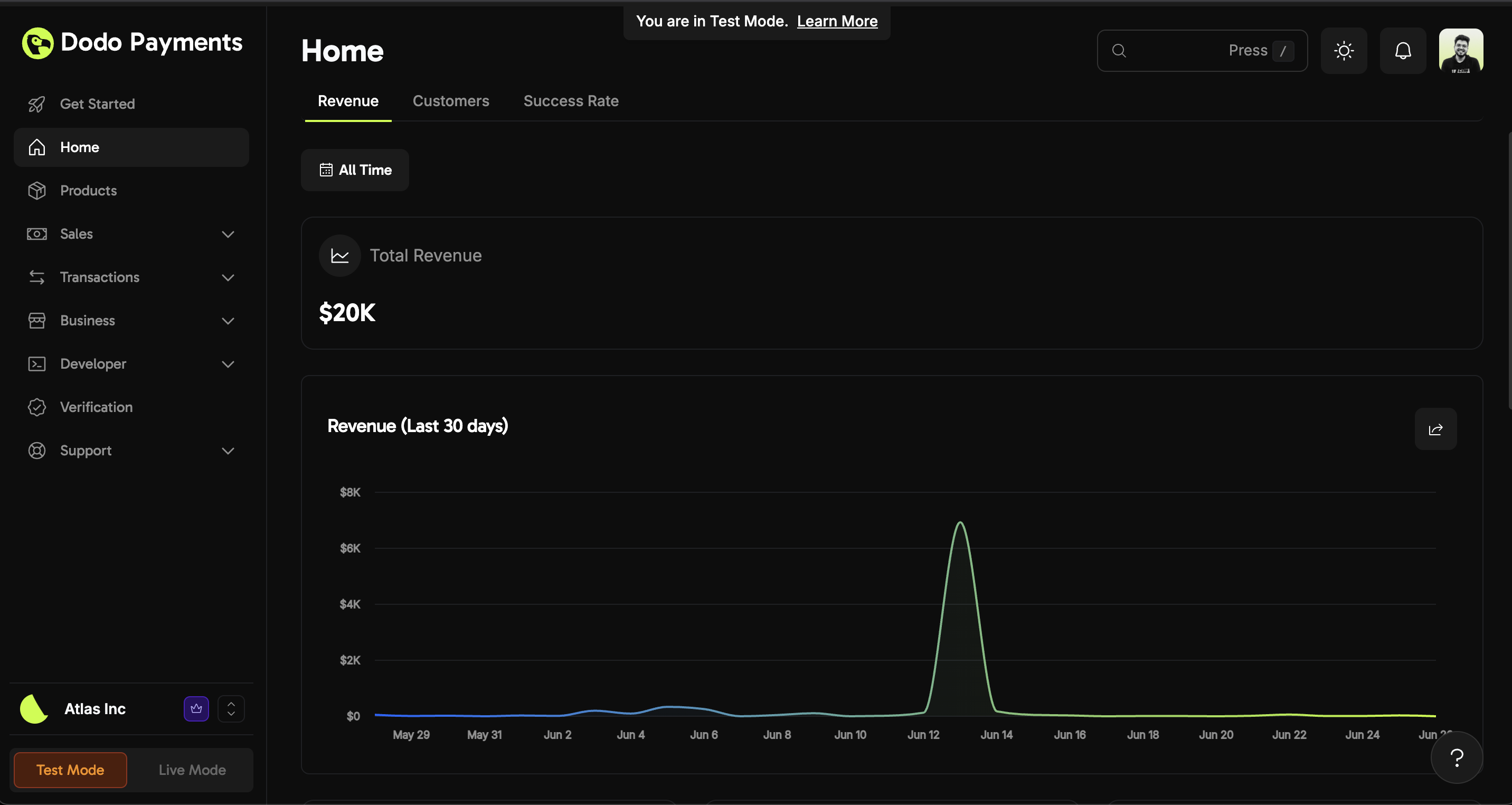 * **Total Revenue:** Instantly see your all-time revenue and recent trends.
* **Revenue Trend:** The 30-day chart helps you spot spikes or dips in income.
* **Total Revenue:** Instantly see your all-time revenue and recent trends.
* **Revenue Trend:** The 30-day chart helps you spot spikes or dips in income.
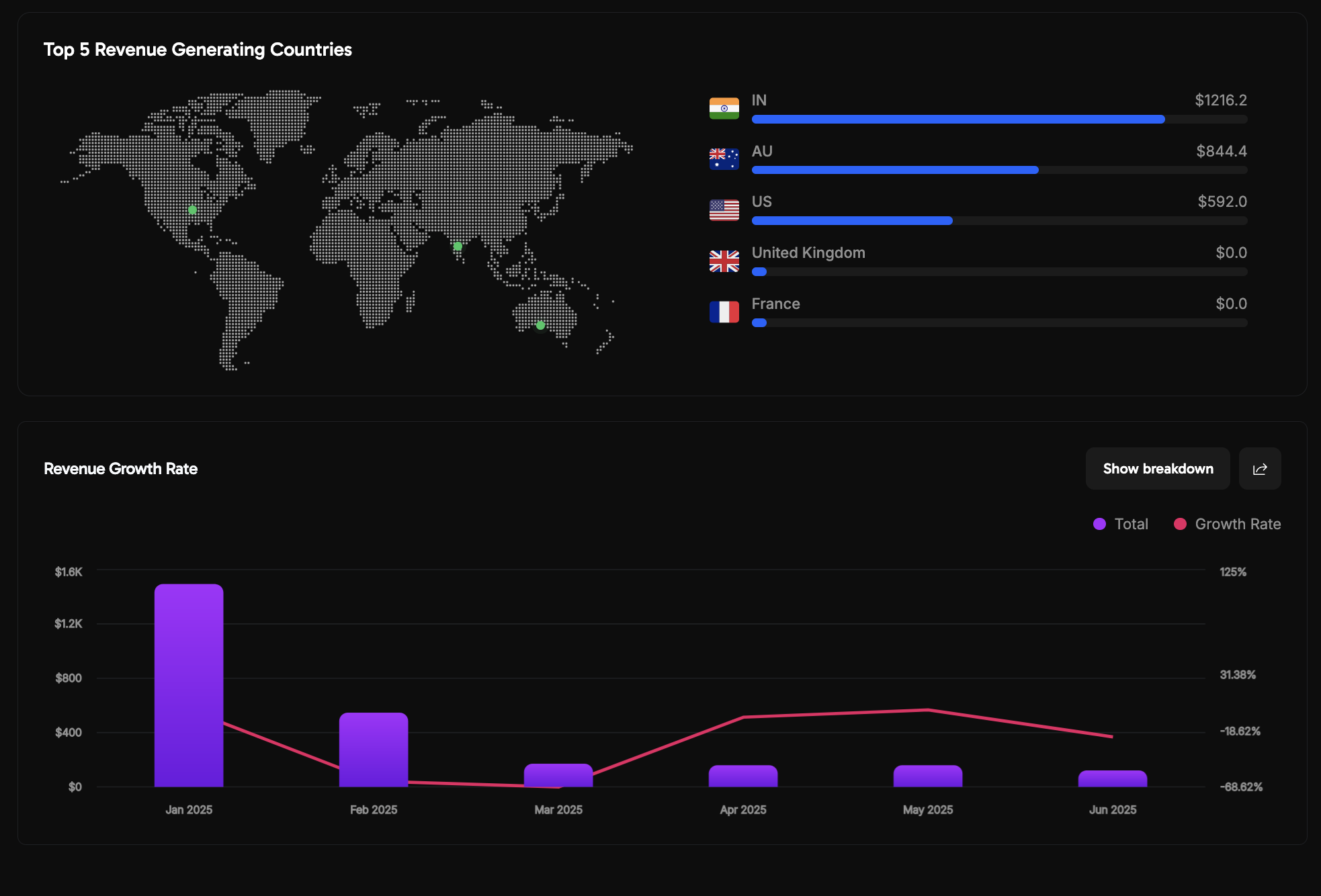 * **Growth Rate:** Track monthly revenue growth to measure business momentum.
* **Geographic Insights:** Visualize your top 5 revenue-generating countries.
Use these insights to focus your marketing and product efforts on high-performing regions and periods of growth.
## Revenue Breakdown Analytics
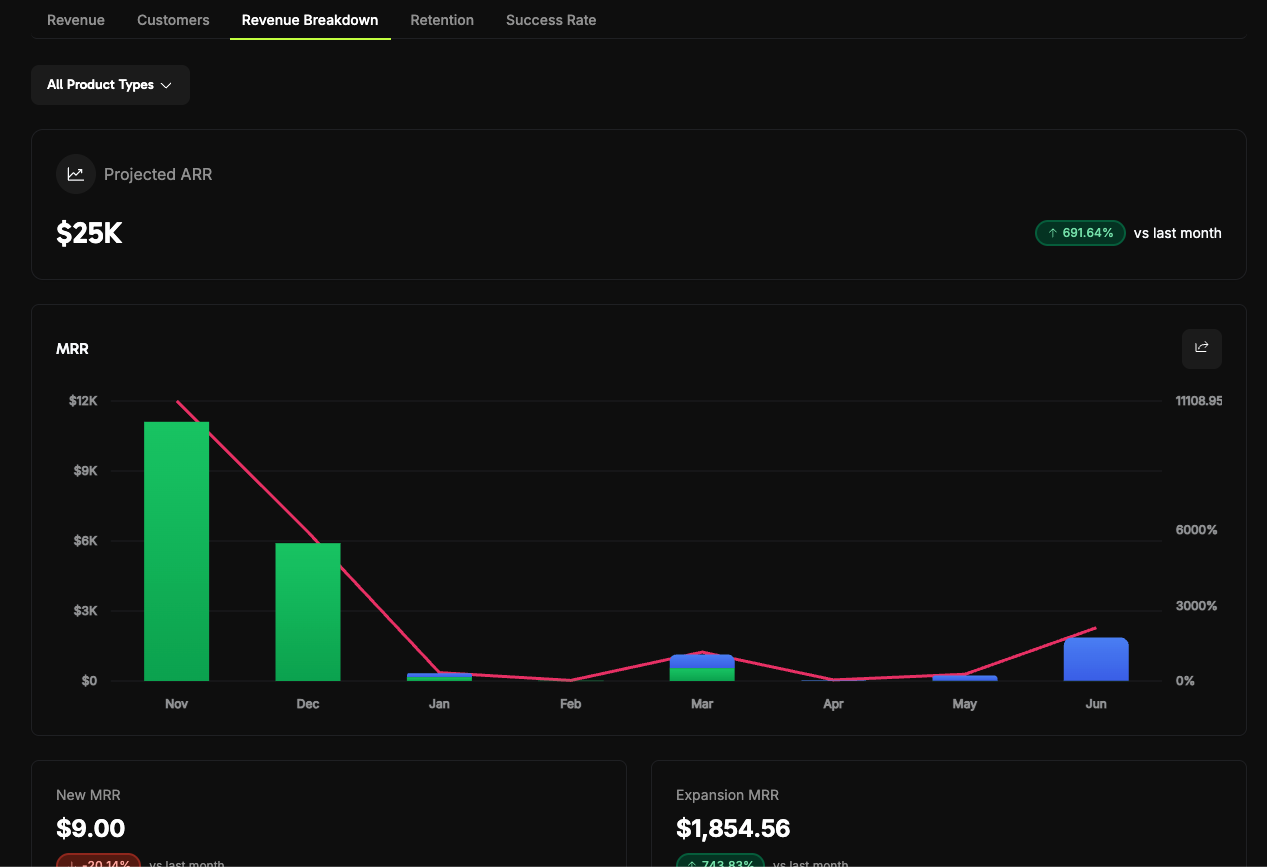
Track your recurring revenue metrics with detailed breakdowns:
* **Projected ARR**: Annual Recurring Revenue projections with trend analysis
* **MRR Breakdown and Growth Rate**: Monthly Recurring Revenue analysis with month-over-month growth metrics
* **New MRR Chart**: Visual representation of new customer revenue acquisition
* **Expansion MRR Chart**: Tracking revenue growth from existing customer upgrades and expansions
* **Churn MRR Chart**: Monitoring revenue lost from customer cancellations and downgrades
* **Net New MRR Chart**: Net revenue impact combining new, expansion, and churn MRR
* **Growth Rate:** Track monthly revenue growth to measure business momentum.
* **Geographic Insights:** Visualize your top 5 revenue-generating countries.
Use these insights to focus your marketing and product efforts on high-performing regions and periods of growth.
## Revenue Breakdown Analytics
Track your recurring revenue metrics with detailed breakdowns:
* **Projected ARR**: Annual Recurring Revenue projections with trend analysis
* **MRR Breakdown and Growth Rate**: Monthly Recurring Revenue analysis with month-over-month growth metrics
* **New MRR Chart**: Visual representation of new customer revenue acquisition
* **Expansion MRR Chart**: Tracking revenue growth from existing customer upgrades and expansions
* **Churn MRR Chart**: Monitoring revenue lost from customer cancellations and downgrades
* **Net New MRR Chart**: Net revenue impact combining new, expansion, and churn MRR
 ## Retention Analytics
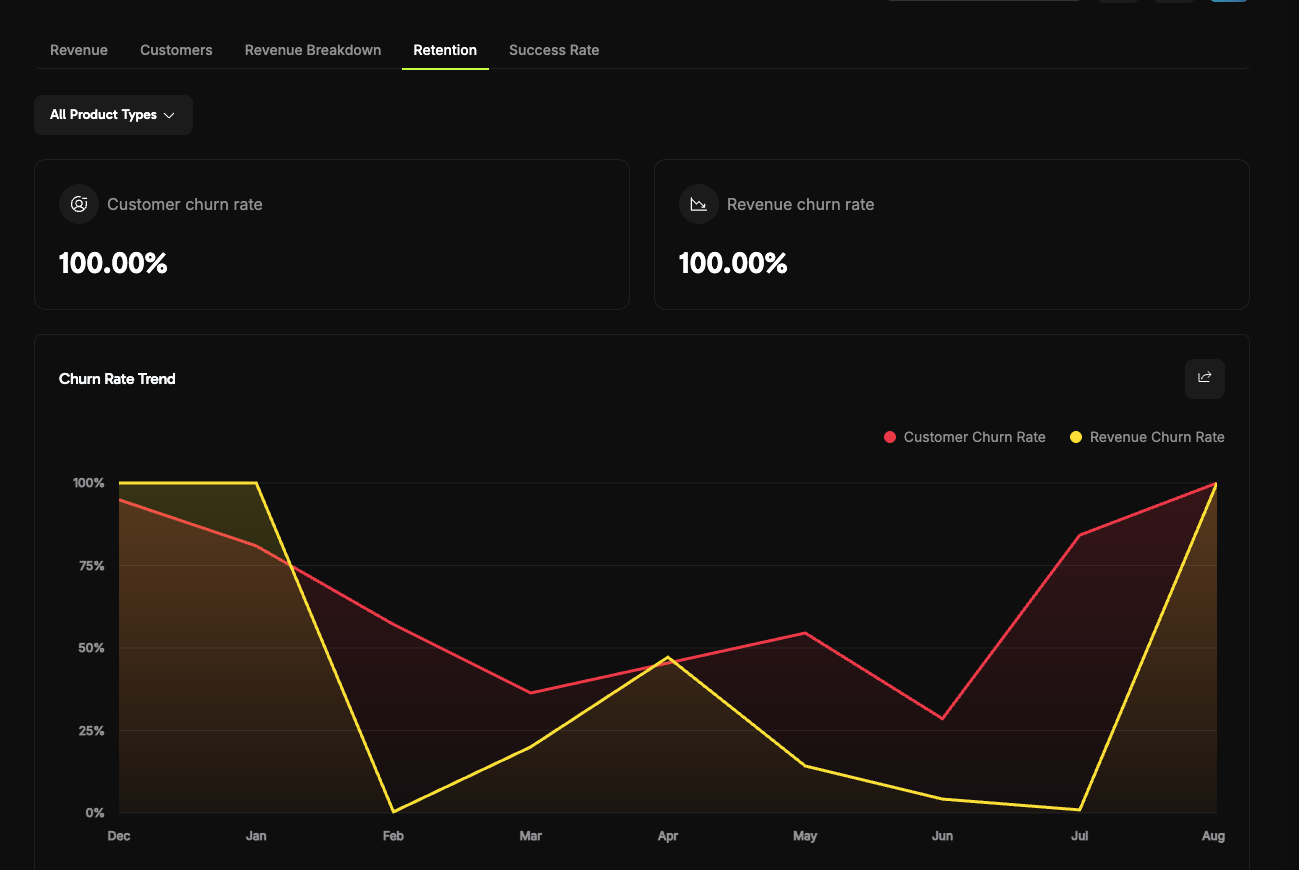
Monitor customer retention and churn patterns:
* **Customer Churn Rate**: Percentage of customers who cancel their subscriptions
* **Revenue Churn Rate**: Percentage of revenue lost from cancellations and downgrades
* **Churn Rate Trends**: Historical tracking of both customer and revenue churn patterns over time
* **User Retention Matrix**: Cohort analysis showing customer retention rates across different time periods
## Retention Analytics
Monitor customer retention and churn patterns:
* **Customer Churn Rate**: Percentage of customers who cancel their subscriptions
* **Revenue Churn Rate**: Percentage of revenue lost from cancellations and downgrades
* **Churn Rate Trends**: Historical tracking of both customer and revenue churn patterns over time
* **User Retention Matrix**: Cohort analysis showing customer retention rates across different time periods
 ## Customer Analytics
Analyze customer acquisition, retention, and spending patterns to optimize your customer strategy.
## Customer Analytics
Analyze customer acquisition, retention, and spending patterns to optimize your customer strategy.
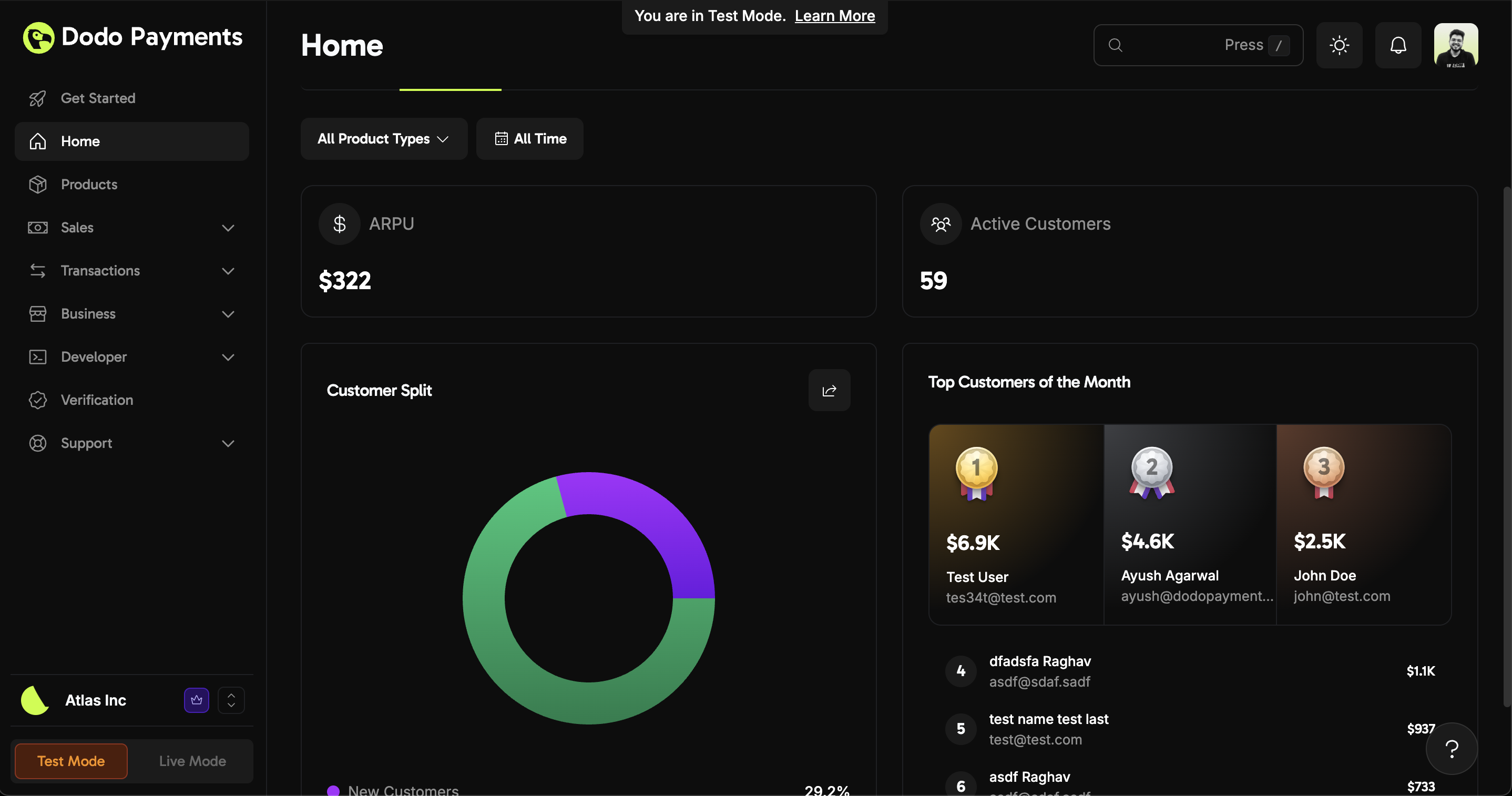 * **ARPU (Average Revenue Per User):** Understand how much each customer contributes on average.
* **Active Customers:** See how many customers are engaging with your business.
* **Customer Split:** Instantly view the ratio of new vs. returning customers.
* **Top Customers:** Identify your highest spenders for targeted engagement.
Monitor ARPU and customer split to refine your retention and acquisition strategies.
## Transaction Success & Failure Analytics
Monitor payment and refund success rates to identify and resolve transaction issues quickly.
* **ARPU (Average Revenue Per User):** Understand how much each customer contributes on average.
* **Active Customers:** See how many customers are engaging with your business.
* **Customer Split:** Instantly view the ratio of new vs. returning customers.
* **Top Customers:** Identify your highest spenders for targeted engagement.
Monitor ARPU and customer split to refine your retention and acquisition strategies.
## Transaction Success & Failure Analytics
Monitor payment and refund success rates to identify and resolve transaction issues quickly.
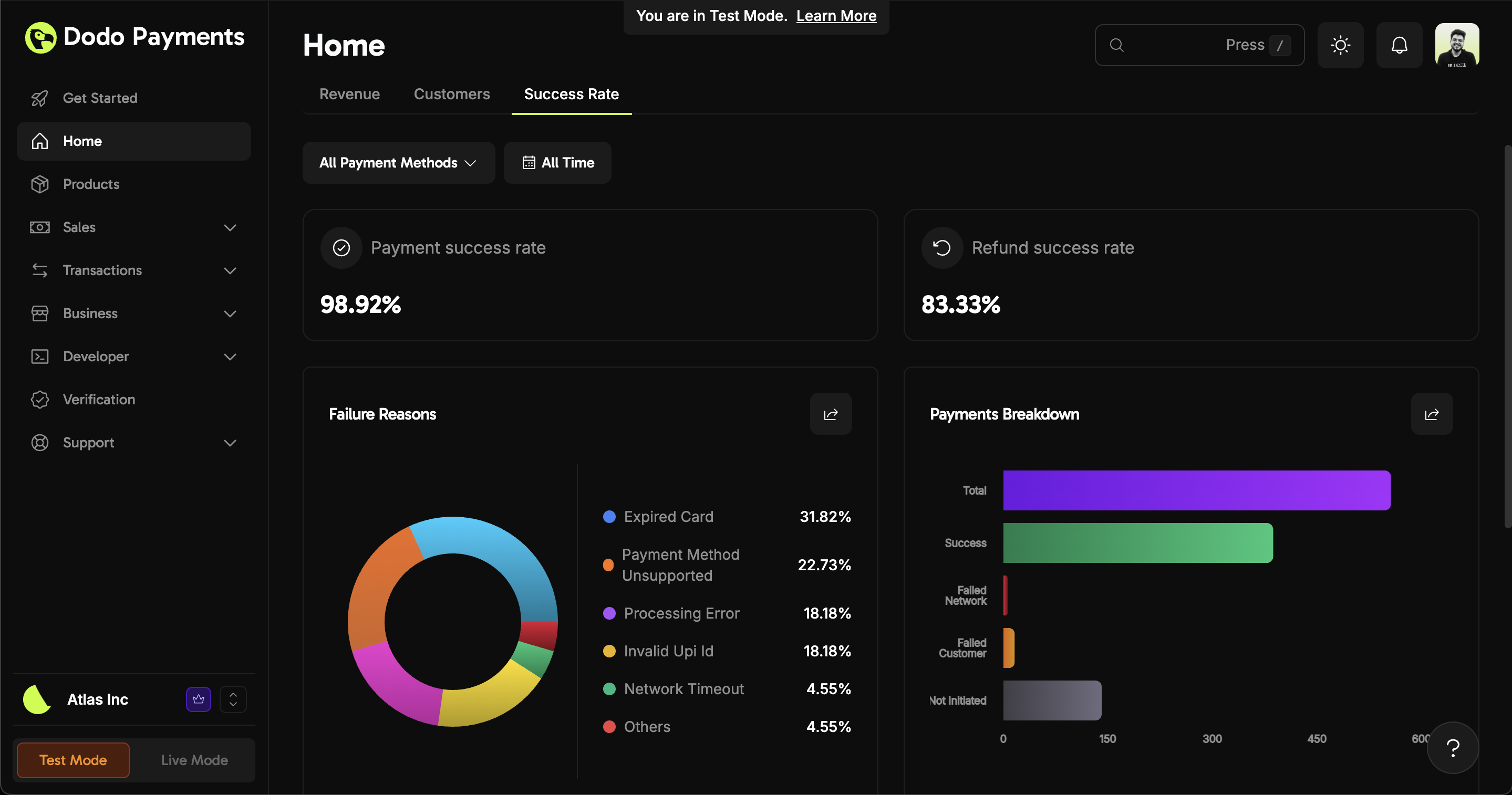 * **Payment Success Rate:** Track the percentage of successful payment attempts.
* **Refund Success Rate:** Monitor how many refunds are processed successfully.
* **Failure Reasons:** Quickly identify common issues (e.g., expired cards, unsupported methods).
Get all possible transaction failure codes and it's reasons.
* **Payments Breakdown:** Visualize the distribution of successful and failed transactions.
If you notice a drop in success rates or a spike in failures, review the failure reasons and address them promptly to minimize revenue loss.
## Filtering & Customization
You can filter analytics data by:
* **Product Type** (one-time vs. subscription)
* **Date Range** (customizable)
* **Payment Method**
Use filters to drill down into specific products, time periods, or payment methods for targeted insights.
## Reports
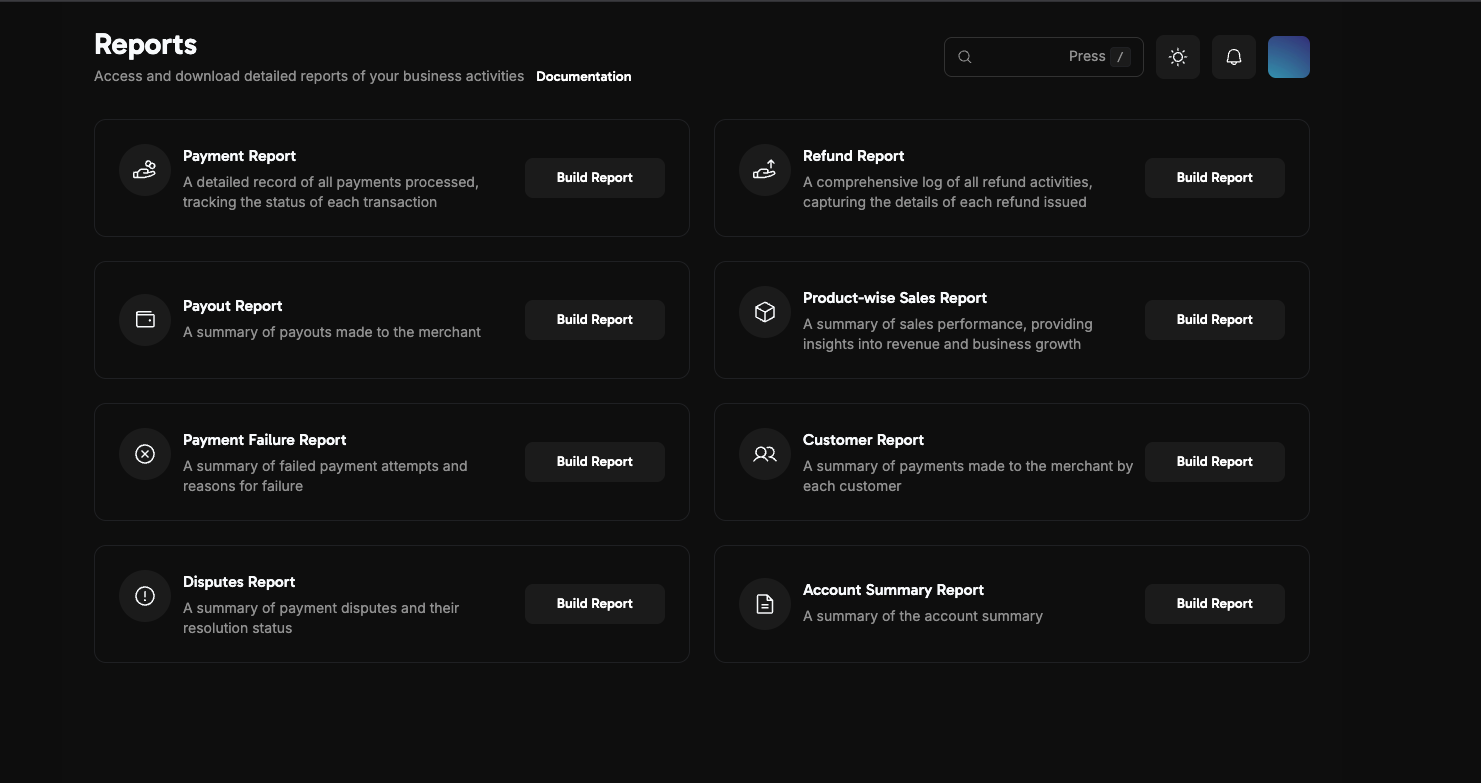
We've completely revamped the reports section with more comprehensive and detailed reporting capabilities. Navigate to **Business > Reports** to access the new reporting suite.
Available reports include:
* **Payment Report**: Detailed record of all processed payments with transaction status tracking
* **Refund Report**: Comprehensive log of all refund activities with detailed refund information
* **Payout Report**: Summary of payouts made to your account
* **Product-wise Sales Report**: Sales performance insights with revenue and business growth metrics
* **Payment Failure Report**: Summary of failed payment attempts with failure reasons
* **Customer Report**: Payment summary organized by customer
* **Disputes Report**: Payment disputes summary with resolution status
* **Account Summary Report**: Complete account overview and summary
* **Payment Success Rate:** Track the percentage of successful payment attempts.
* **Refund Success Rate:** Monitor how many refunds are processed successfully.
* **Failure Reasons:** Quickly identify common issues (e.g., expired cards, unsupported methods).
Get all possible transaction failure codes and it's reasons.
* **Payments Breakdown:** Visualize the distribution of successful and failed transactions.
If you notice a drop in success rates or a spike in failures, review the failure reasons and address them promptly to minimize revenue loss.
## Filtering & Customization
You can filter analytics data by:
* **Product Type** (one-time vs. subscription)
* **Date Range** (customizable)
* **Payment Method**
Use filters to drill down into specific products, time periods, or payment methods for targeted insights.
## Reports
We've completely revamped the reports section with more comprehensive and detailed reporting capabilities. Navigate to **Business > Reports** to access the new reporting suite.
Available reports include:
* **Payment Report**: Detailed record of all processed payments with transaction status tracking
* **Refund Report**: Comprehensive log of all refund activities with detailed refund information
* **Payout Report**: Summary of payouts made to your account
* **Product-wise Sales Report**: Sales performance insights with revenue and business growth metrics
* **Payment Failure Report**: Summary of failed payment attempts with failure reasons
* **Customer Report**: Payment summary organized by customer
* **Disputes Report**: Payment disputes summary with resolution status
* **Account Summary Report**: Complete account overview and summary
 ## Enhanced Payout Reporting
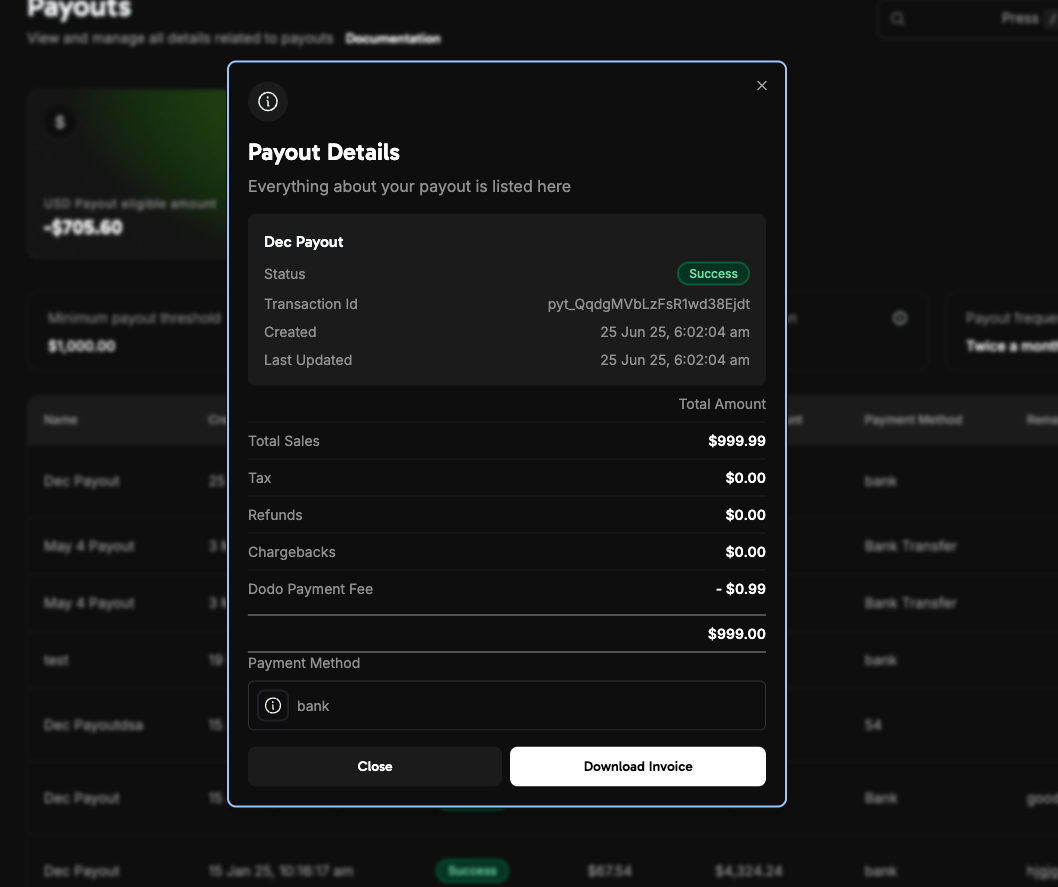
We've added detailed payout reports that provide clear visibility into fees and transaction details for each payout you receive from Dodo Payments. Access these enhanced reports in **Business > Payouts**.
## Enhanced Payout Reporting
We've added detailed payout reports that provide clear visibility into fees and transaction details for each payout you receive from Dodo Payments. Access these enhanced reports in **Business > Payouts**.
 ## Downloading & Exporting Reports
You can export detailed reports directly from the dashboard:
Navigate to the Reports area in your dashboard.
Choose the report you need (Payments, Refunds, Payouts) and specify the date range.
Click Download to export your report in CSV format.
Your report will be saved to your device.
## Best Practices & Troubleshooting
* Regularly review your analytics to spot trends and anomalies early.
* Use filters to compare performance across products, time periods, or geographies.
* If data appears incorrect or missing, check your filters and date range settings first.
If you notice persistent discrepancies or missing data, contact [support@dodopayments.com](mailto:support@dodopayments.com) for assistance.
## Next Steps & Related Resources
Understand your earnings, deductions, and payout cycles.
Track and manage all payment transactions.
Initiate and monitor refunds, and export refund reports.
Manage and respond to payment disputes.
## Downloading & Exporting Reports
You can export detailed reports directly from the dashboard:
Navigate to the Reports area in your dashboard.
Choose the report you need (Payments, Refunds, Payouts) and specify the date range.
Click Download to export your report in CSV format.
Your report will be saved to your device.
## Best Practices & Troubleshooting
* Regularly review your analytics to spot trends and anomalies early.
* Use filters to compare performance across products, time periods, or geographies.
* If data appears incorrect or missing, check your filters and date range settings first.
If you notice persistent discrepancies or missing data, contact [support@dodopayments.com](mailto:support@dodopayments.com) for assistance.
## Next Steps & Related Resources
Understand your earnings, deductions, and payout cycles.
Track and manage all payment transactions.
Initiate and monitor refunds, and export refund reports.
Manage and respond to payment disputes.