

Meters convert raw events into billable quantities. They filter events and apply aggregation functions (Count, Sum, Max, Last) to calculate usage per customer.
API Resources
View Meter API References
View Meter API References
Create Meter
Create meters programmatically via API.
List Meters
Retrieve all meters in your account.
Get Meter
Fetch details for a specific meter by ID.
Archive Meter
Archive a meter to stop tracking usage.
Unarchive Meter
Restore an archived meter to resume tracking.
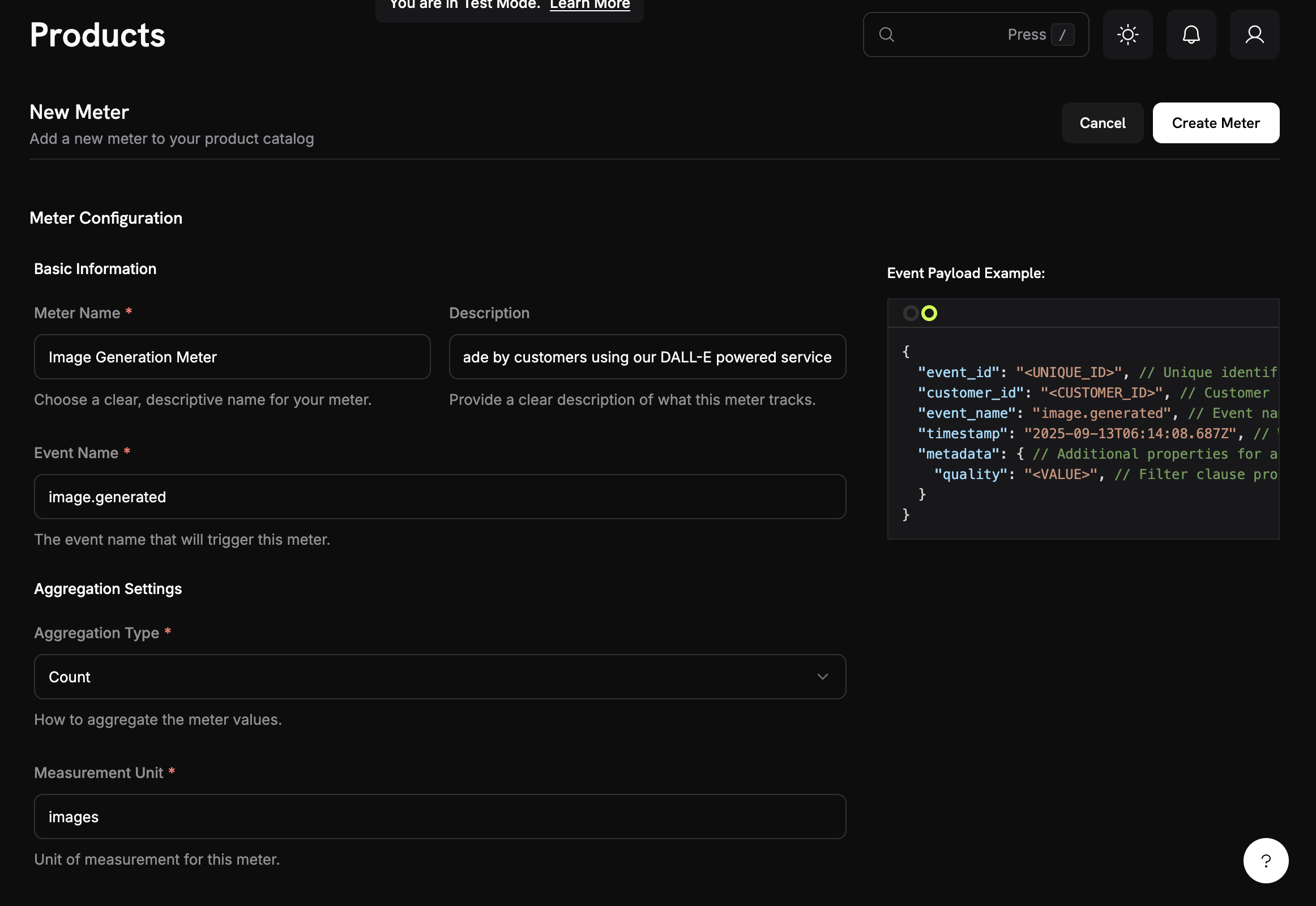
Creating a Meter
1
2
Aggregation
string
required
Choose how events are aggregated:
- Count: Total number of events (API calls, uploads)
- Sum: Add numeric values (tokens, bytes)
- Max: Highest value in period (peak users)
- Last: Most recent value
string
Metadata key to aggregate (required for all types except Count). Examples:
tokens, bytes, duration_msstring
required
Unit label for invoices. Examples:
calls, tokens, GB, hours3
Filtering (Optional)
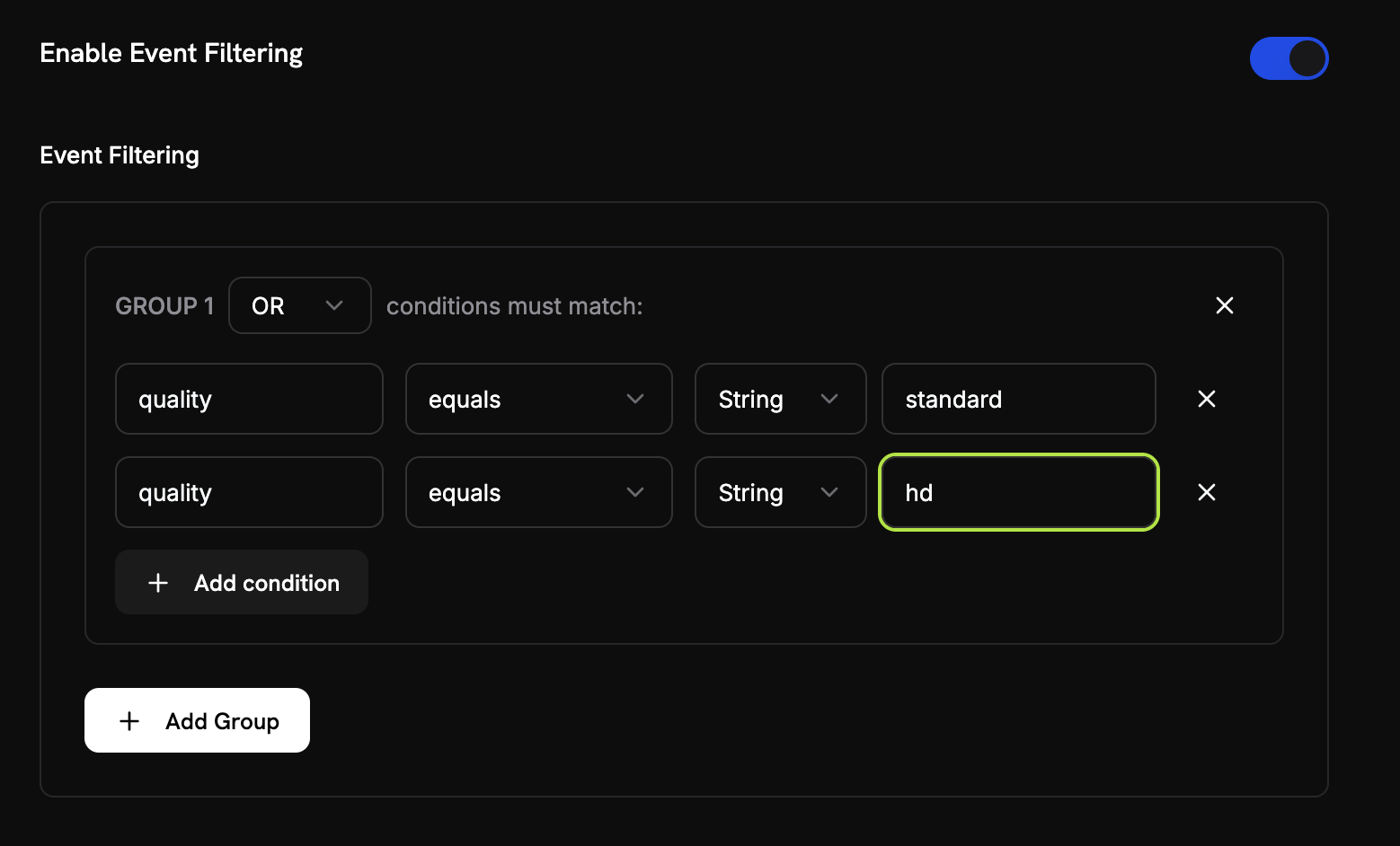
- AND logic: All conditions must match
- OR logic: Any condition can match
4
Create
Review configuration and click Create Meter.
Viewing Analytics
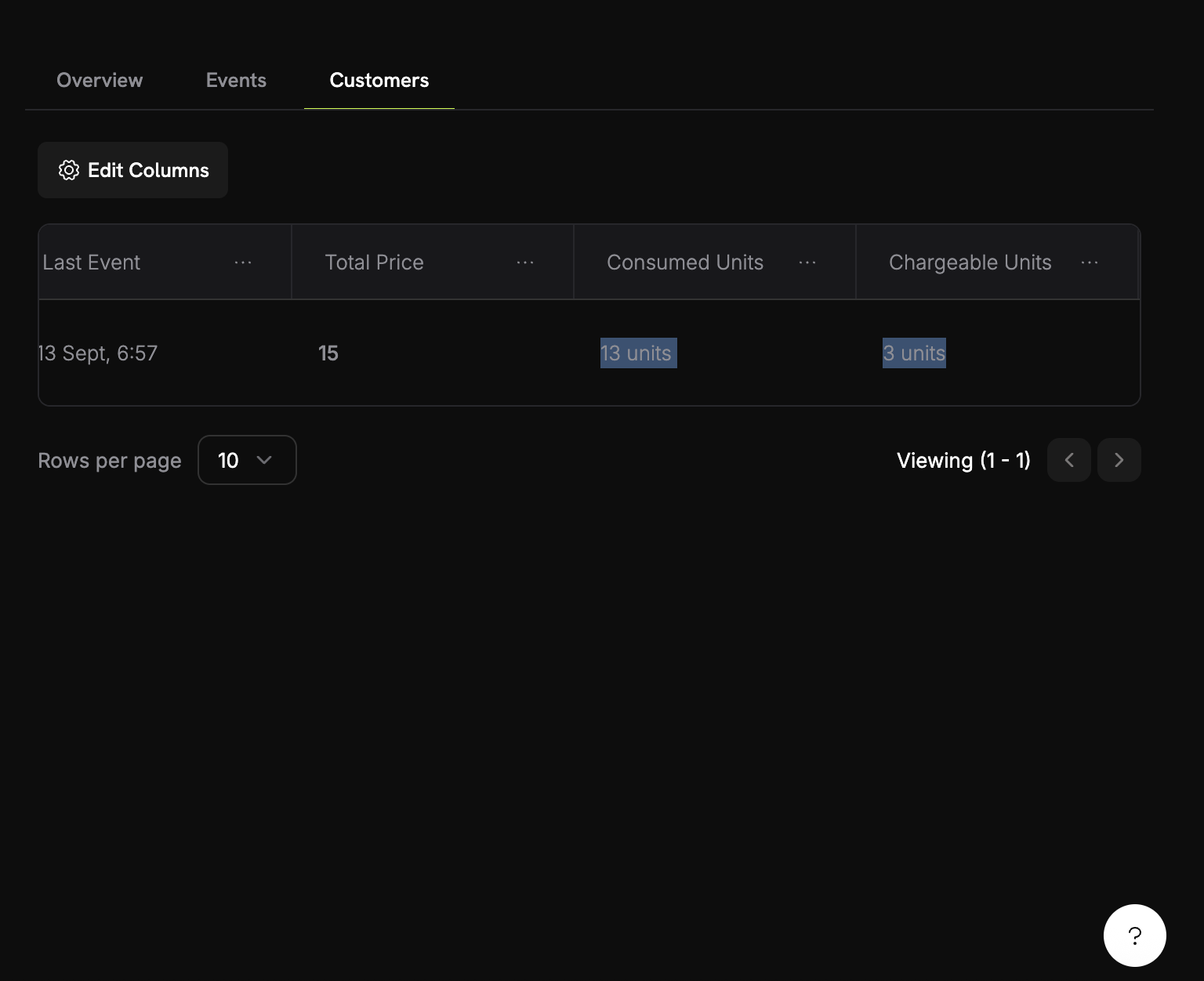
- Overview: Total usage and usage chart
- Events: Individual events received
- Customers: Per-customer usage and charges
Troubleshooting
Events not appearing
Events not appearing
- Event name must match exactly (case-sensitive)
- Check meter filters aren’t excluding events
- Verify customer IDs exist
- Temporarily disable filters to test
Aggregation not working
Aggregation not working
- Verify Over Property matches metadata key exactly
- Use numbers, not strings:
tokens: 150not"150" - Include required properties in all events
Filters not working
Filters not working
- Match case exactly
- Use correct operators for data type
- Ensure events include filtered properties
Wrong usage totals
Wrong usage totals
- Check Events tab to count actual events received
- Verify aggregation type (Count vs Sum)
- Ensure values are numeric for Sum/Max
Next Steps
Send Events
Start sending usage events from your application to your meters.
View Blueprints
Use ready-made meter configurations for common use cases.